
Side toolbar tools ViewBoard 3.0
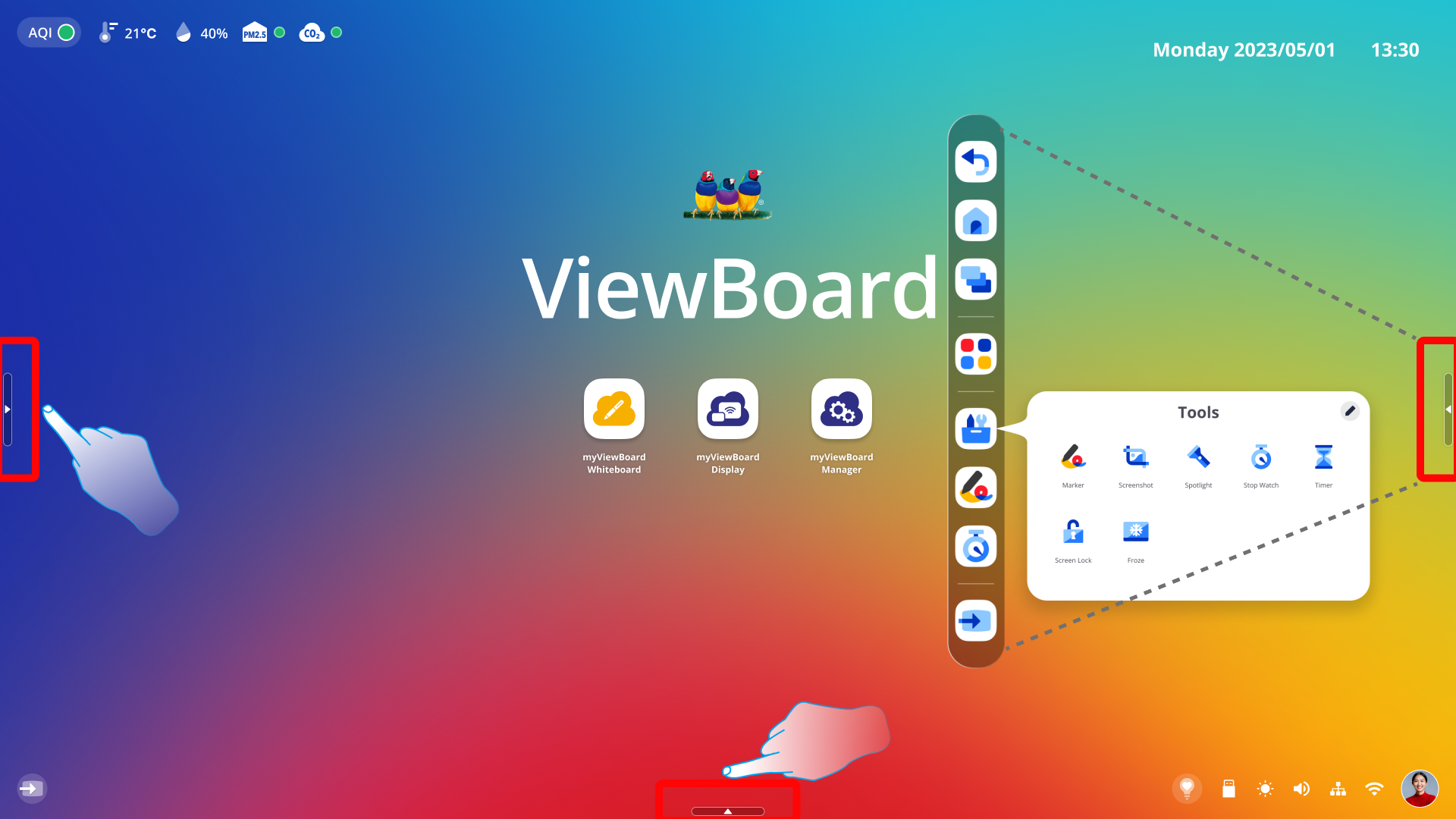 Side toolbar icons highlighted at the left, right, and bottom edges of the ViewBoard home screen, with open toolbar highlighted at the center of the screen.
To access a given tool,
- Press the toolbar icon
 .
- Press your desired tool to open it.
- (Optional) Press the more icon
 to view more tools.
Tool |
Description |
|
|---|---|---|
 Back |
Return to the previous screen. | |
 Home |
Return to the ViewBoard home screen. | |
 Backstage |
Display all open applications. | |
 Apps |
View all installed applications. | |
 Marker |
 Navigation |
Disable marker functions and navigate to different apps and functions on your ViewBoard. Note: When selecting this option, annotations will be erased; however, you'll have the option to save a screenshot before continuing. |
 Pen |
Annotate over your current screen with various color options available. | |
 Highlighter |
Emphasize content on the screen with various color options available. | |
 Eraser |
Remove pen or highlighter marks. | |
 Undo |
Undo a previous action. | |
 Redo |
Redo a previously undone action. | |
 Clear all |
Clears all marks on the screen. | |
 Save |
Save the current screen image including any annotation marks. | |
 Exit |
Close the drawing tool. | |
|
Other tools
|
Marker |
Enable the marker tool and its toolbar to annotate on the screen and highlight key concepts. |
 Screenshot |
Take a screenshot of the current screen. The image will save in your Folders app. | |
 Spotlight |
Enable a tool to focus on your desired part of the screen. Press the settings icon to adjust the spotlight size and level of transparency around the spotlight. | |
 Stopwatch |
Run a countdown with an optional alarm setting. Have the option to view the timer in full screen or continue navigating your ViewBoard with a mini timer running at your desired location. | |
 Timer |
Keep track of time duration during activities. Have the option to view the stopwatch in full screen or continue navigating your ViewBoard with a mini stopwatch running at your desired location. | |
 Screen Lock |
Enable a lock that requires a password in order to continue using your ViewBoard. | |
 Freeze |
Convert the currently displayed screen into a still image into which you can zoom in or out. | |
 Input menu |
Access your current input source's settings. (Icon will change depending on current input source.) | |